友だちとオンラインでクリスマスツリーを飾る方法(2026年)

Deco My Treeでツリーを作って友だちに招待リンクを送りましょう。パソコンでの操作を、持ち主と友だちそれぞれの画面で紹介します。

1. ツリーを選ぶ

パソコンでエディターを開き、ツリータブで好みの木を選びます。プレビューで確認しましょう。
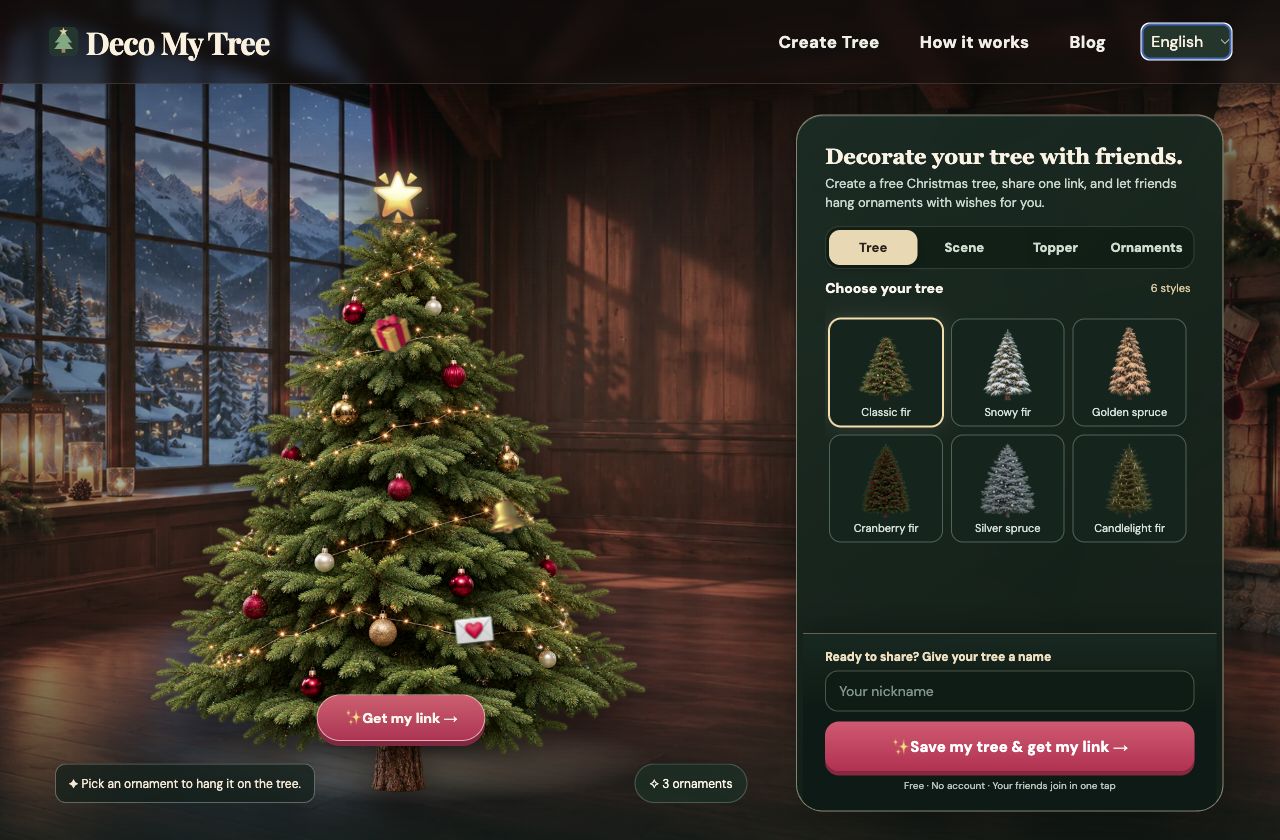
Desktop editor showing a classic fir and the available Christmas tree styles
Pick the shape of the tree before choosing its setting.

2. 冬景色を選ぶ

背景タブでオーロラなどを選ぶとプレビューが切り替わります。
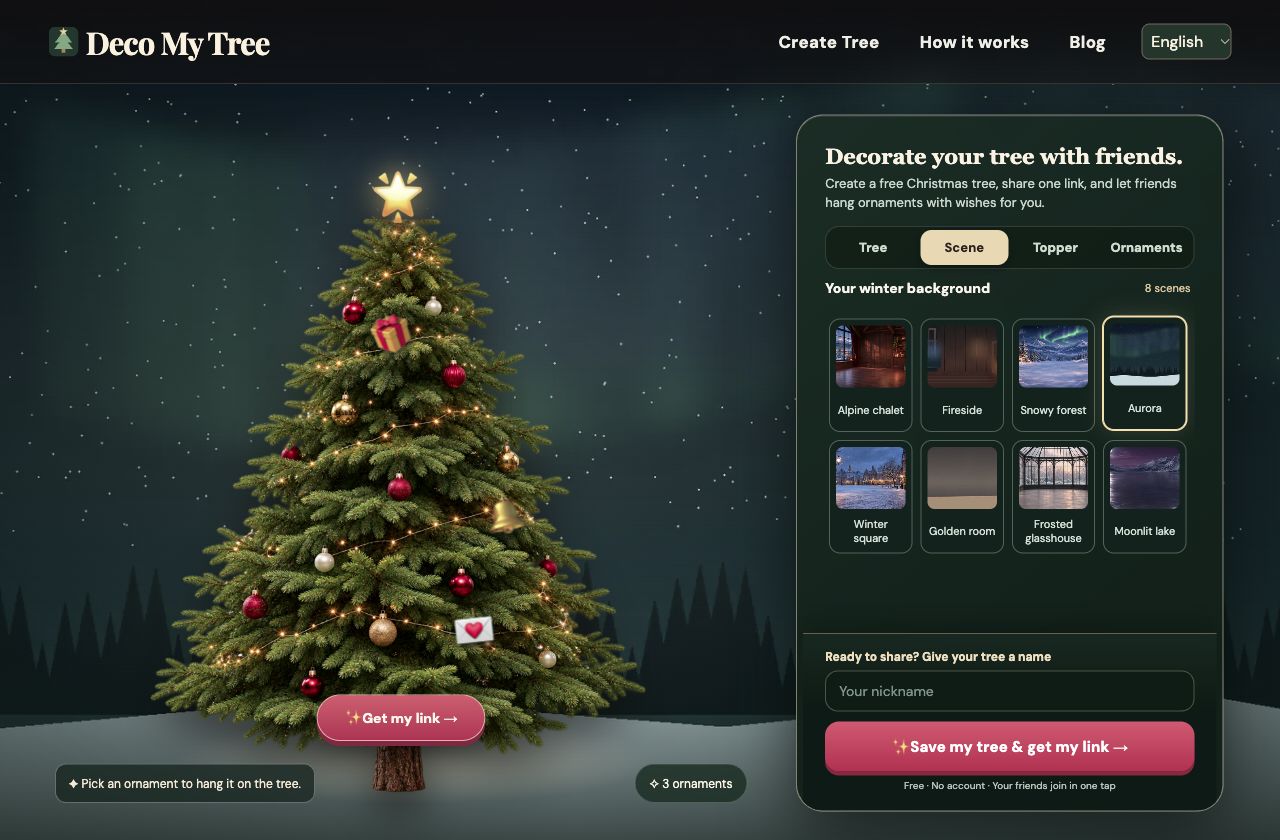
Desktop Scene tab with the Christmas tree displayed against an aurora
The preview updates when you select a new background.

3. てっぺんの飾りを選ぶ

トップタブで星やリボンなどを選び、てっぺんを飾りましょう。
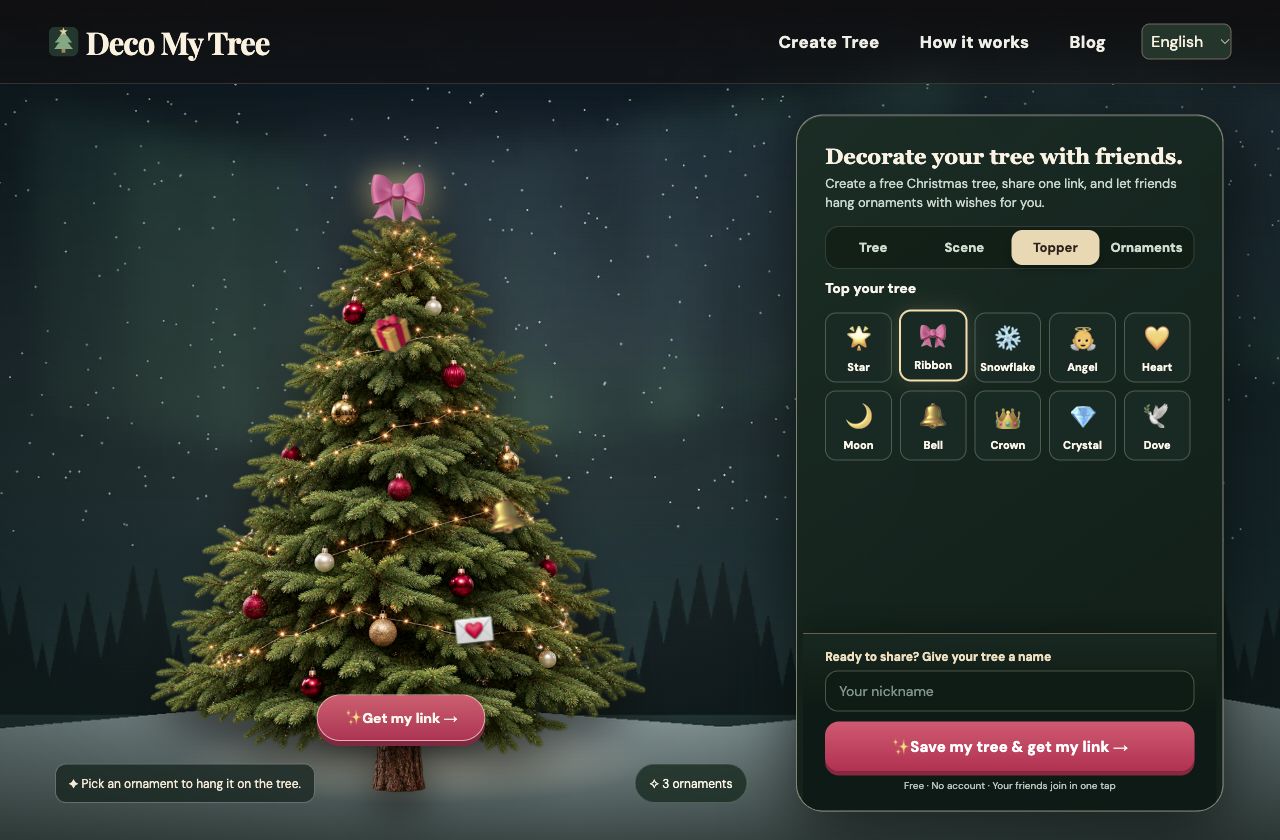
Desktop Topper tab with a bow on top of the virtual Christmas tree
The selected topper appears above the branches.

4. 飾りをつける

飾りタブで選ぶとツリーに取り付けられます。最大20個追加でき、取り消しで最後の飾りを外せます。
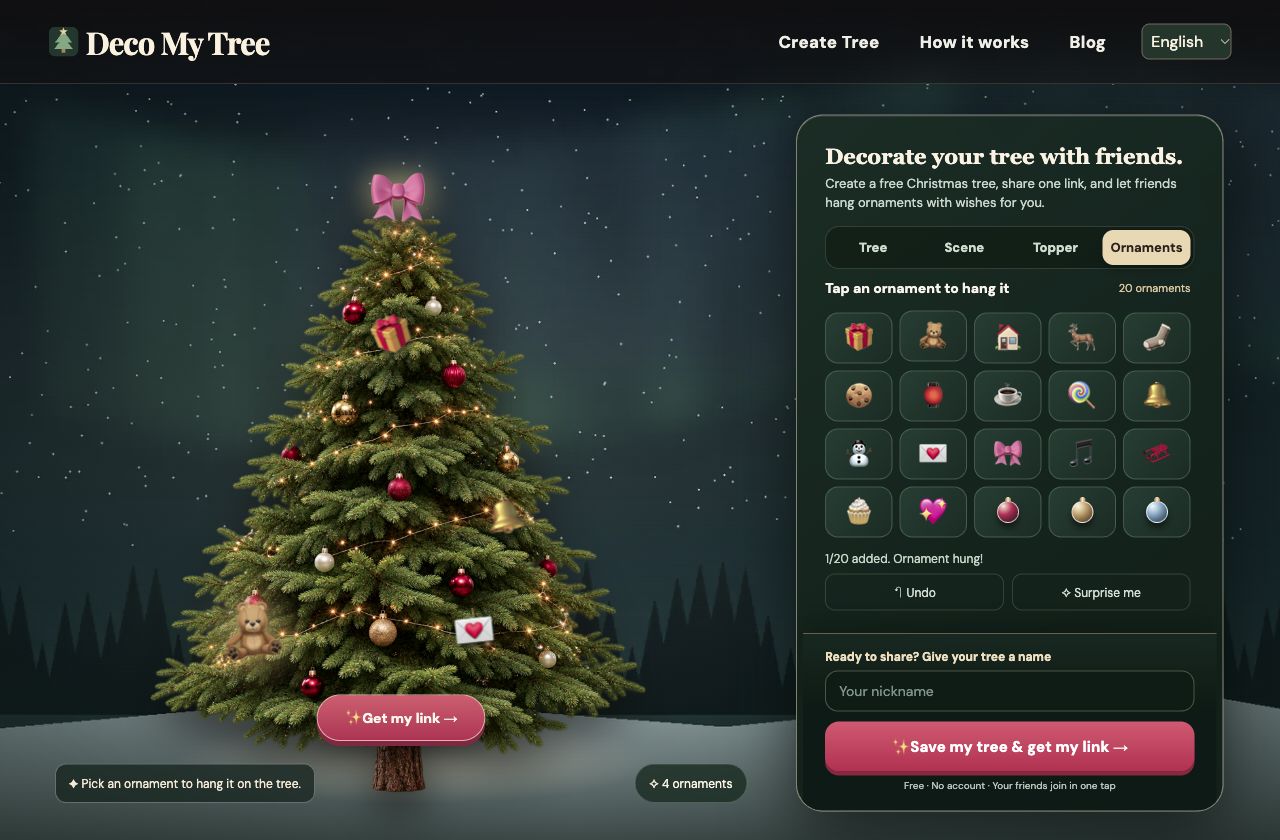
Desktop Ornaments tab showing a teddy bear added to the Christmas tree
Leave a little room so gifts from friends are easy to spot.

5. 名前を入力して保存する

Enter a nickname that your friends will recognise. Select Save my tree & get my link to open the owner page.
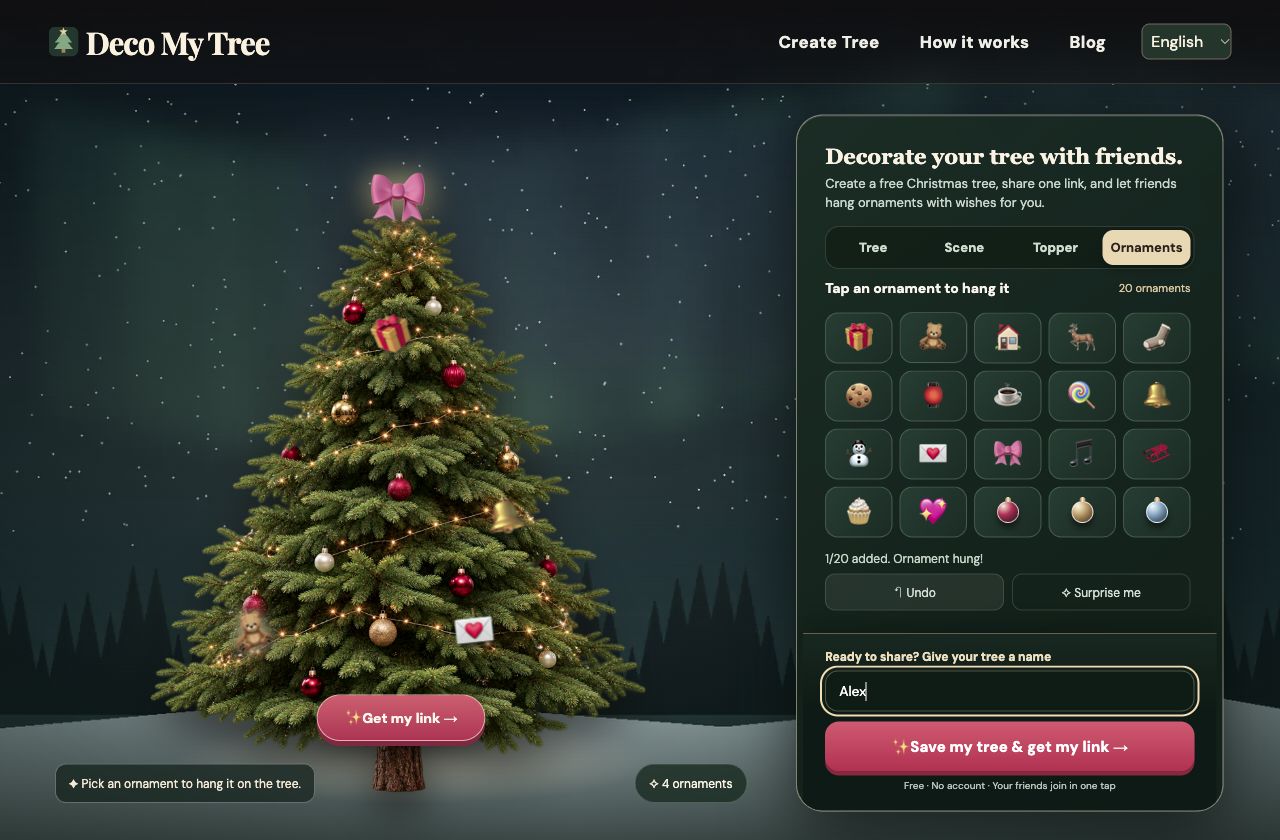
Desktop editor with Alex in the nickname field and the save button below
Your nickname identifies the tree for friends who open the invitation.

6. 招待リンクを送る

管理画面で招待リンクをコピーしてグループチャットに貼ります。管理用の非公開リンクは自分だけで保管しましょう。
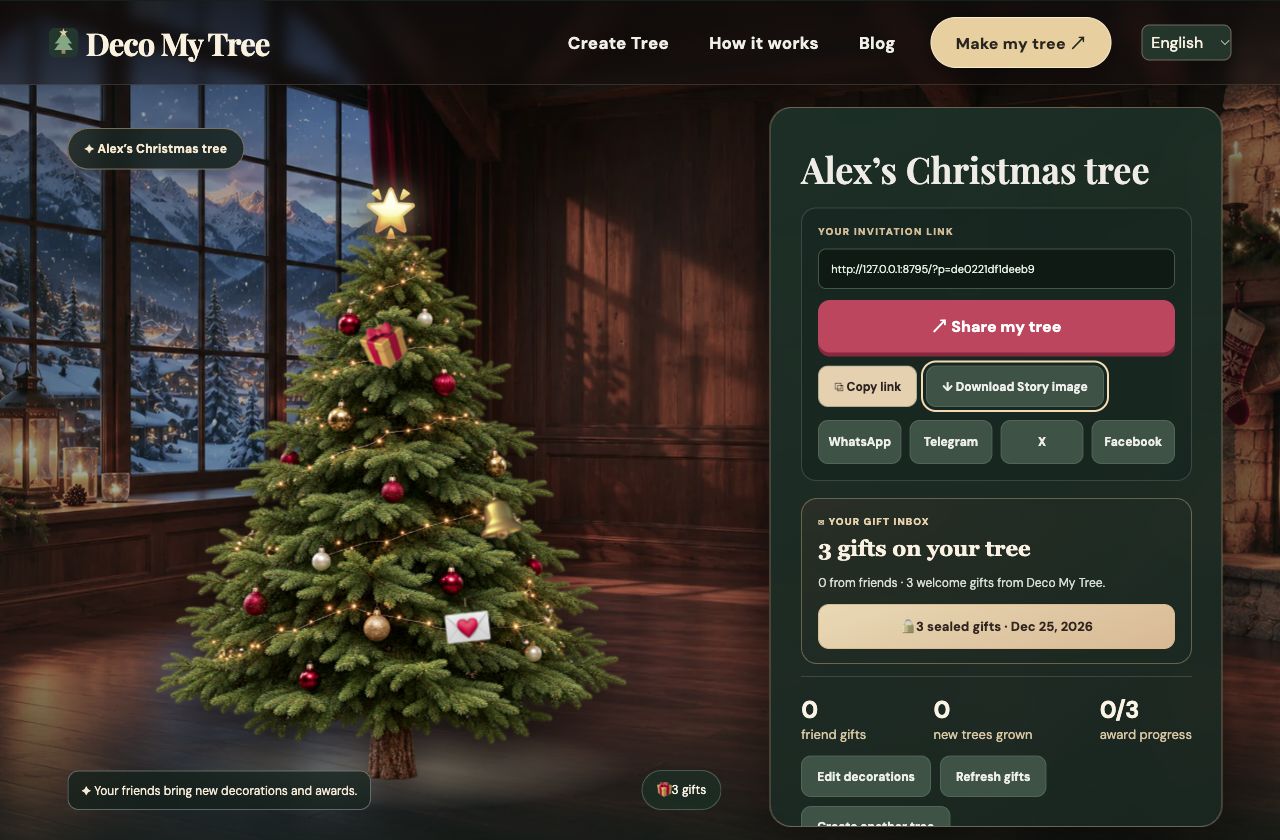
Desktop owner page showing the invitation link and Copy link control
Copy the invitation link from the sharing panel.

7. 友だちがギフトとメッセージを送る

友だちはメッセージを添え、賞を選んでギフトを送れます。メッセージは任意で、送り主が公開を許可したものだけ開封後に訪問者に表示されます。
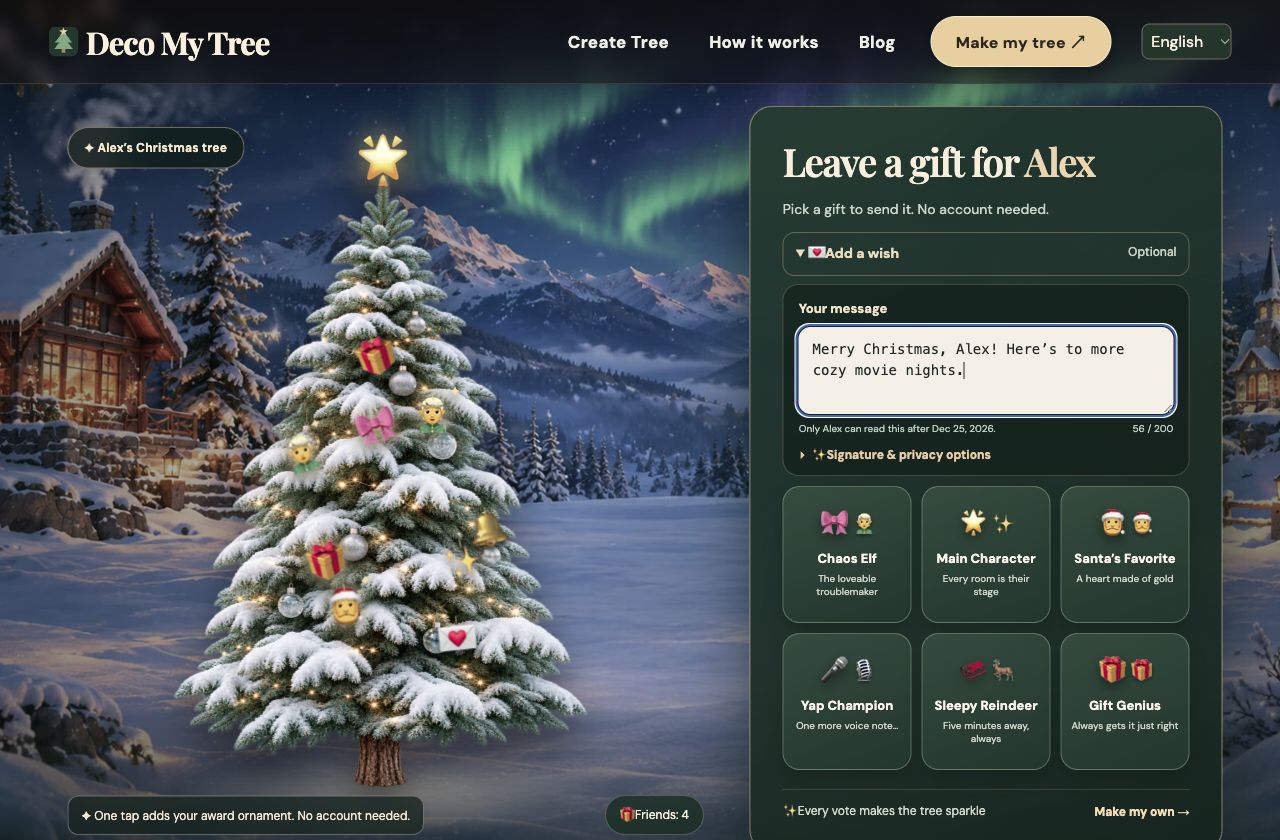
Desktop guest page with a Christmas wish typed above the friend award choices
Selecting an award sends the gift and any note the friend wrote.

8. 自分のツリーでギフトボックスを開く

作成に使ったブラウザーでマイツリーを開きます。別の端末では管理用リンクを使います。表示された公開時刻になったら、ギフトを開くボタンで一覧を表示します。
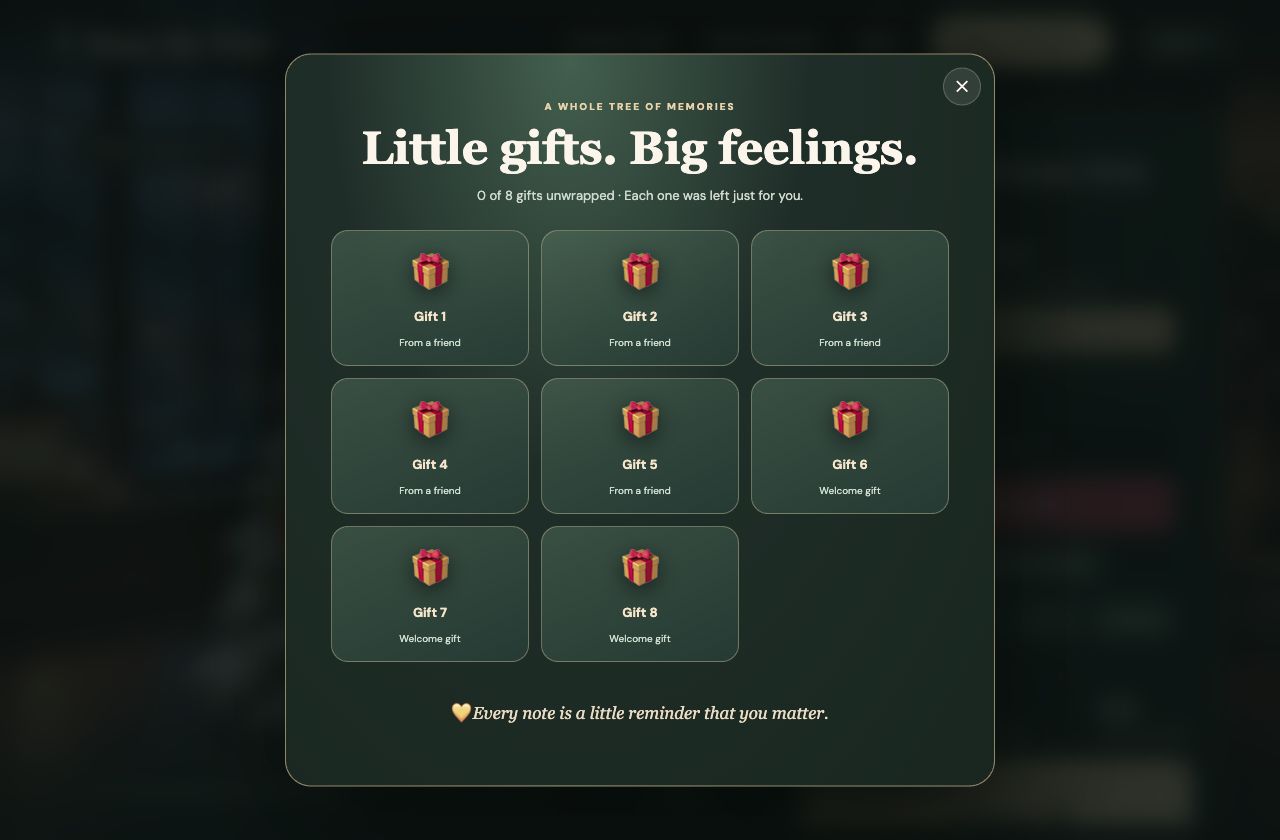
Desktop gift inbox on Alex’s Christmas tree showing numbered gift tiles to unwrap
Choose a gift from the inbox after the reveal.

9. ギフトを開いてメッセージを読む

ギフトを選ぶとメッセージが開きます。署名があれば送り主の名前も表示されます。一覧に戻って次のギフトを選べます。
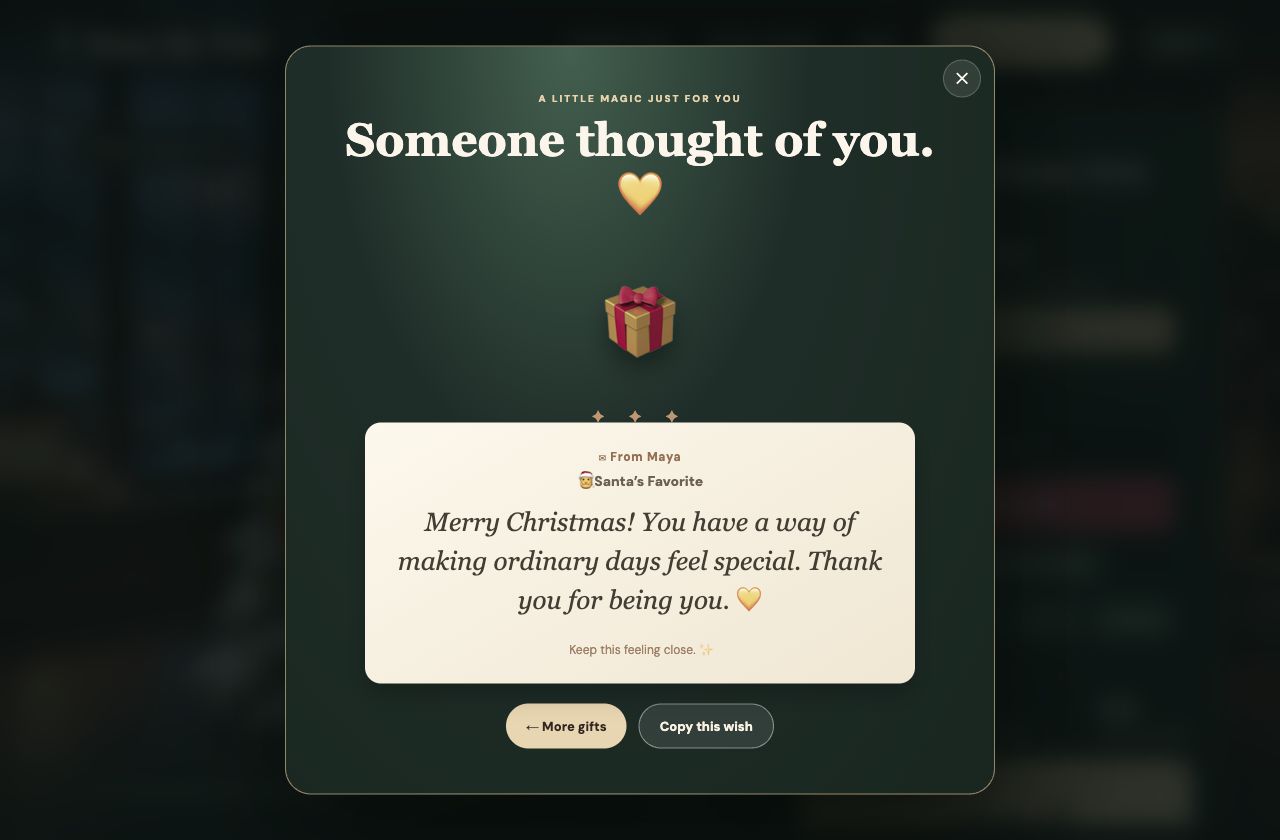
Desktop gift inbox revealing an example Christmas wish on Alex’s tree
The example gift shows what a note looks like after unwrapping.

無料でツリーを作る ↗

← ほかのアイデア