如何和好友在線裝扮聖誕樹(2026)

想在 2026 年和好友在線裝扮聖誕樹?用 Deco My Tree 建樹後,把一條邀請連結發給大家。這篇電腦版教程會帶你看清樹主和好友在每一步看到的畫面。

1. 選擇樹形

在電腦上打開編輯器,在“樹形”分頁點選喜歡的樣式,先查看大圖預覽。
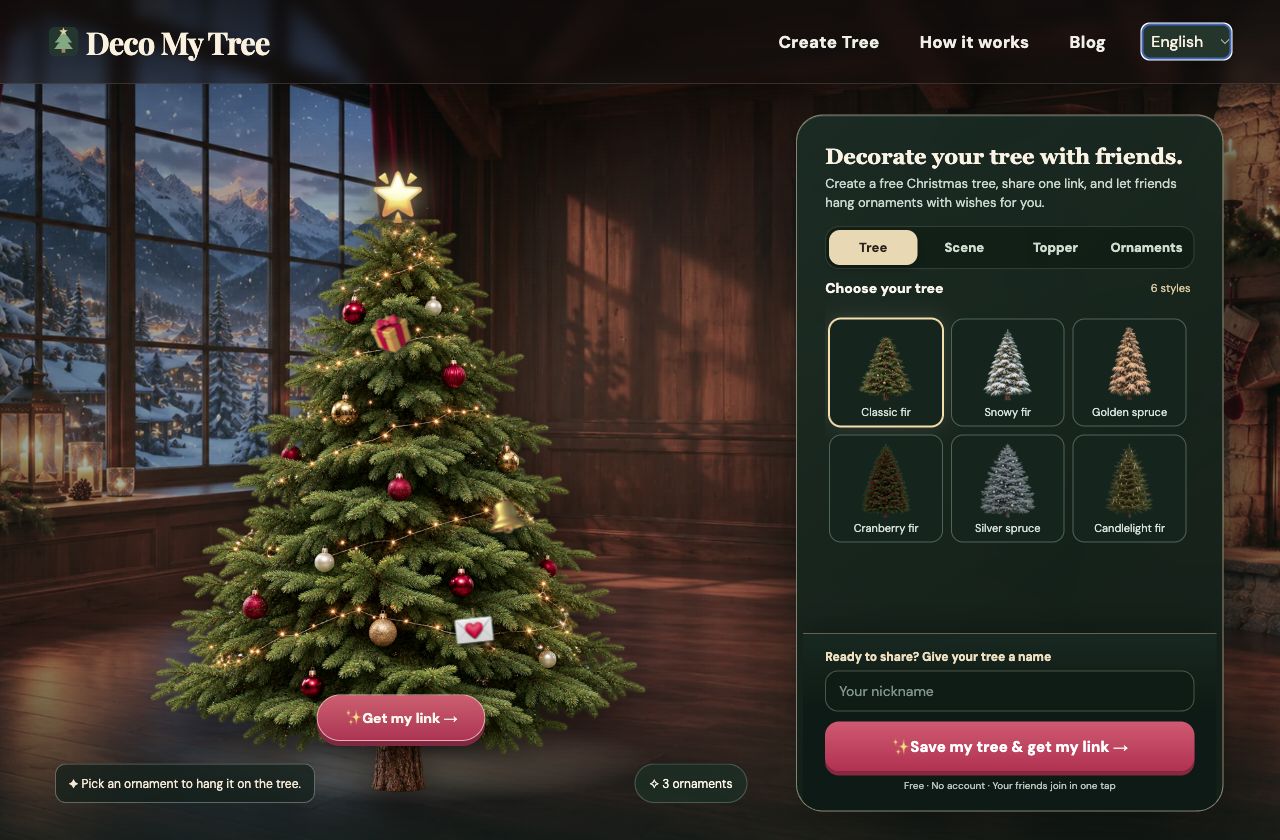
Desktop editor showing a classic fir and the available Christmas tree styles
Pick the shape of the tree before choosing its setting.

2. 選擇冬日場景

打開“場景”,選一個背景,比如極光,看看預覽里的聖誕樹。
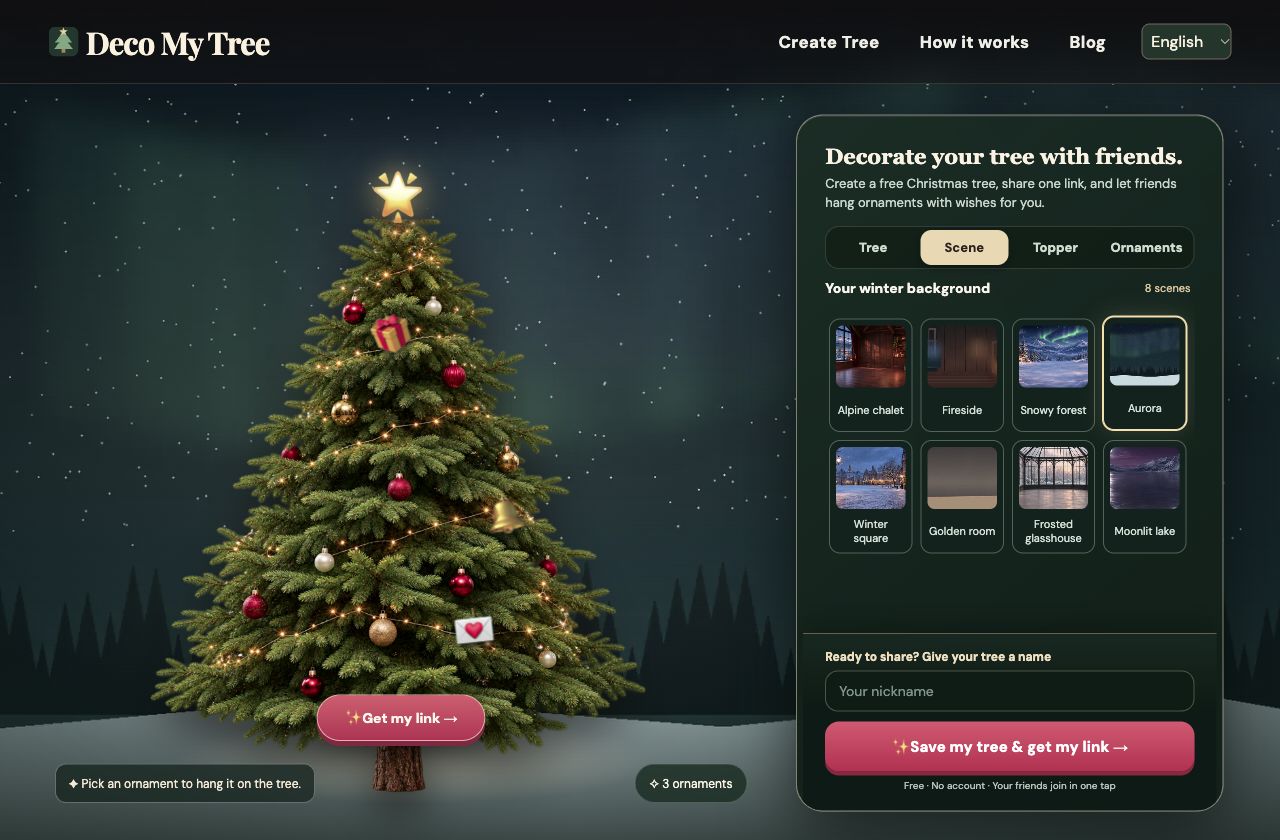
Desktop Scene tab with the Christmas tree displayed against an aurora
The preview updates when you select a new background.

3. 加上樹頂裝飾

打開“樹頂”,選一個喜歡的裝飾。想換種風格,可以試試用蝴蝶結代替星星。
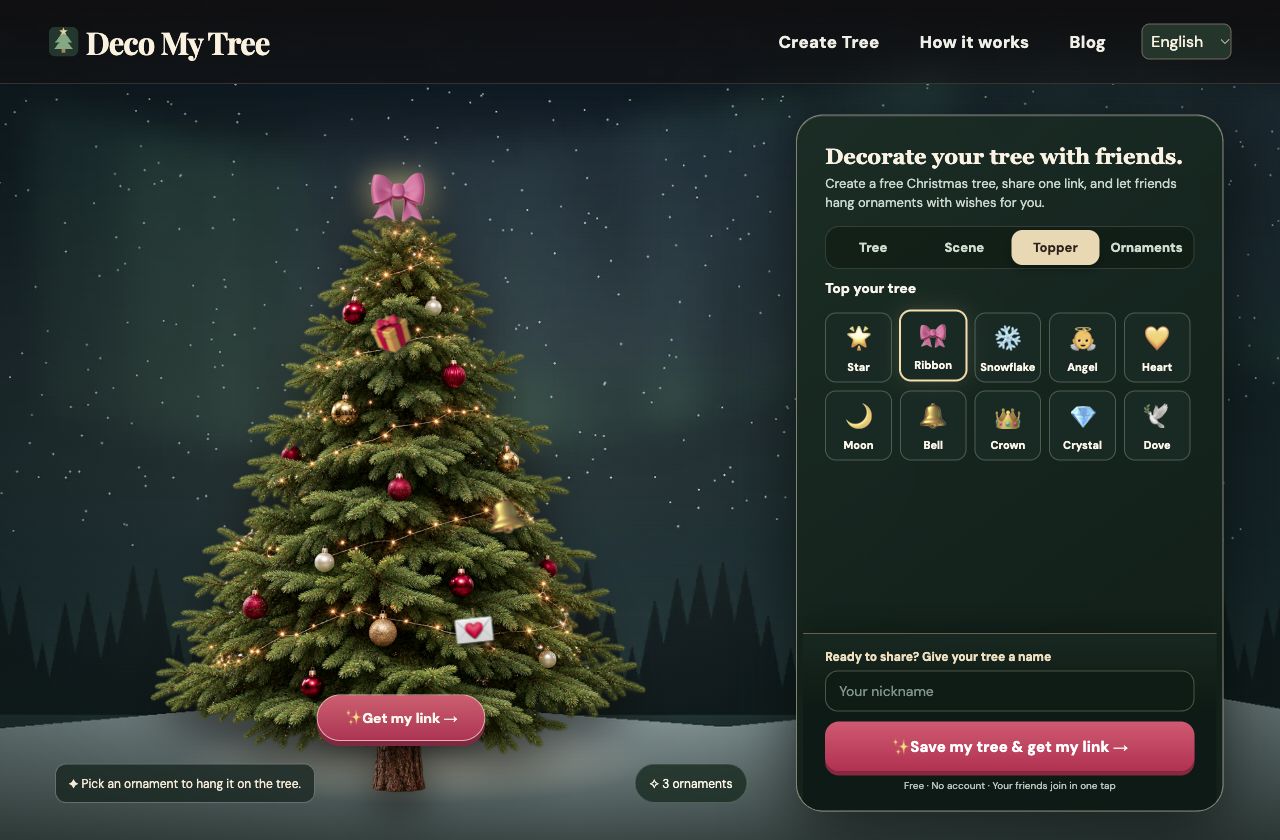
Desktop Topper tab with a bow on top of the virtual Christmas tree
The selected topper appears above the branches.

4. 掛幾件裝飾

在“裝飾”里點選飾品即可掛上樹,最多添加 20 件。用“復原”移除最近一件。
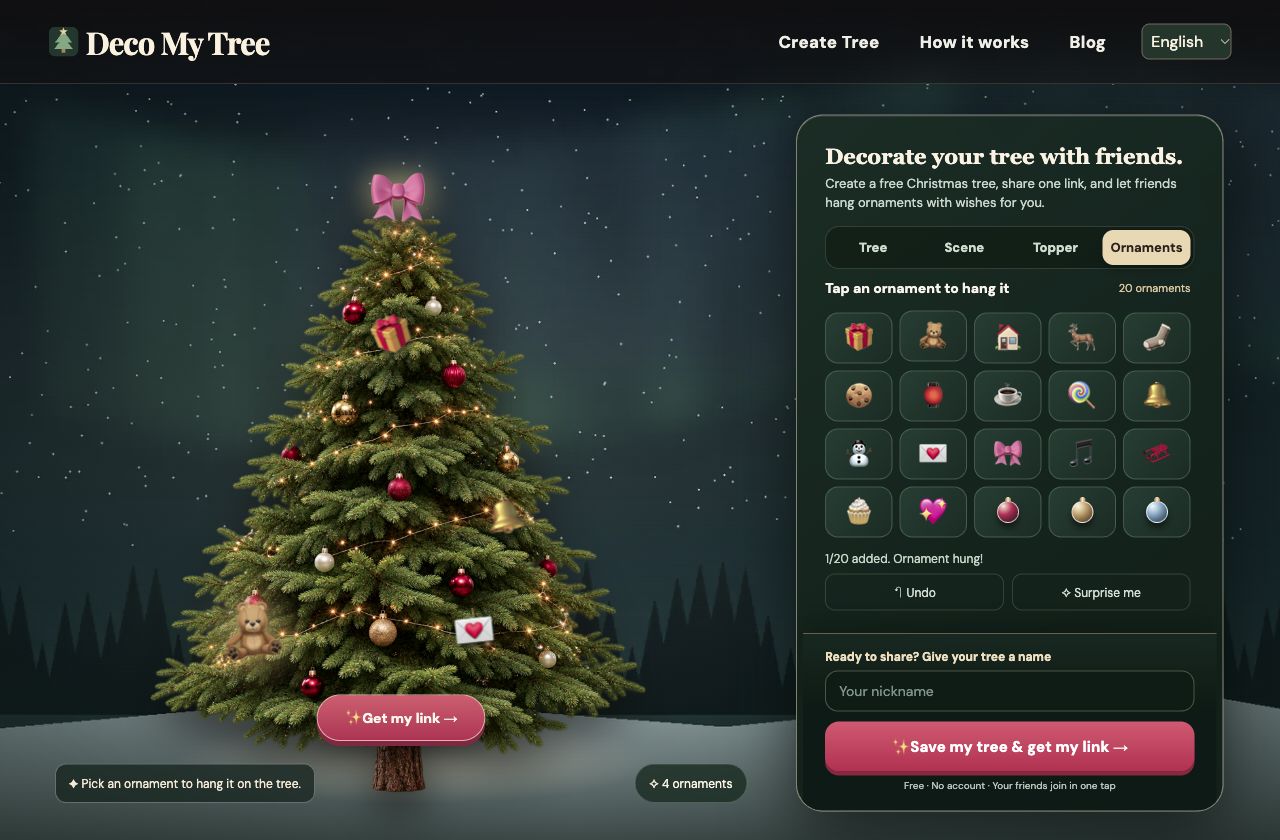
Desktop Ornaments tab showing a teddy bear added to the Christmas tree
Leave a little room so gifts from friends are easy to spot.

5. 給樹取名並保存

Enter a nickname that your friends will recognise. Select Save my tree & get my link to open the owner page.
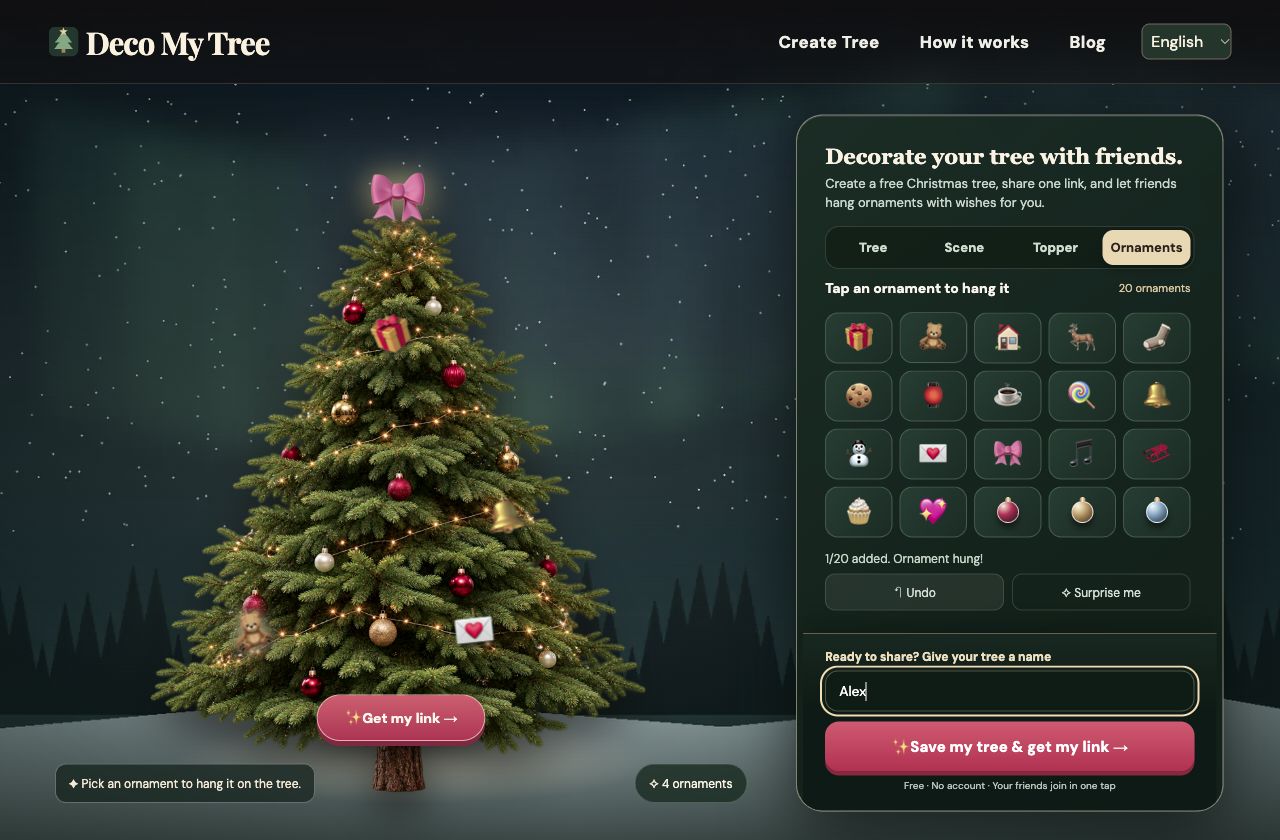
Desktop editor with Alex in the nickname field and the save button below
Your nickname identifies the tree for friends who open the invitation.

6. 發送邀請連結

在管理頁面點選“複製連結”,貼上到群聊。請留好自己的私有管理連結。
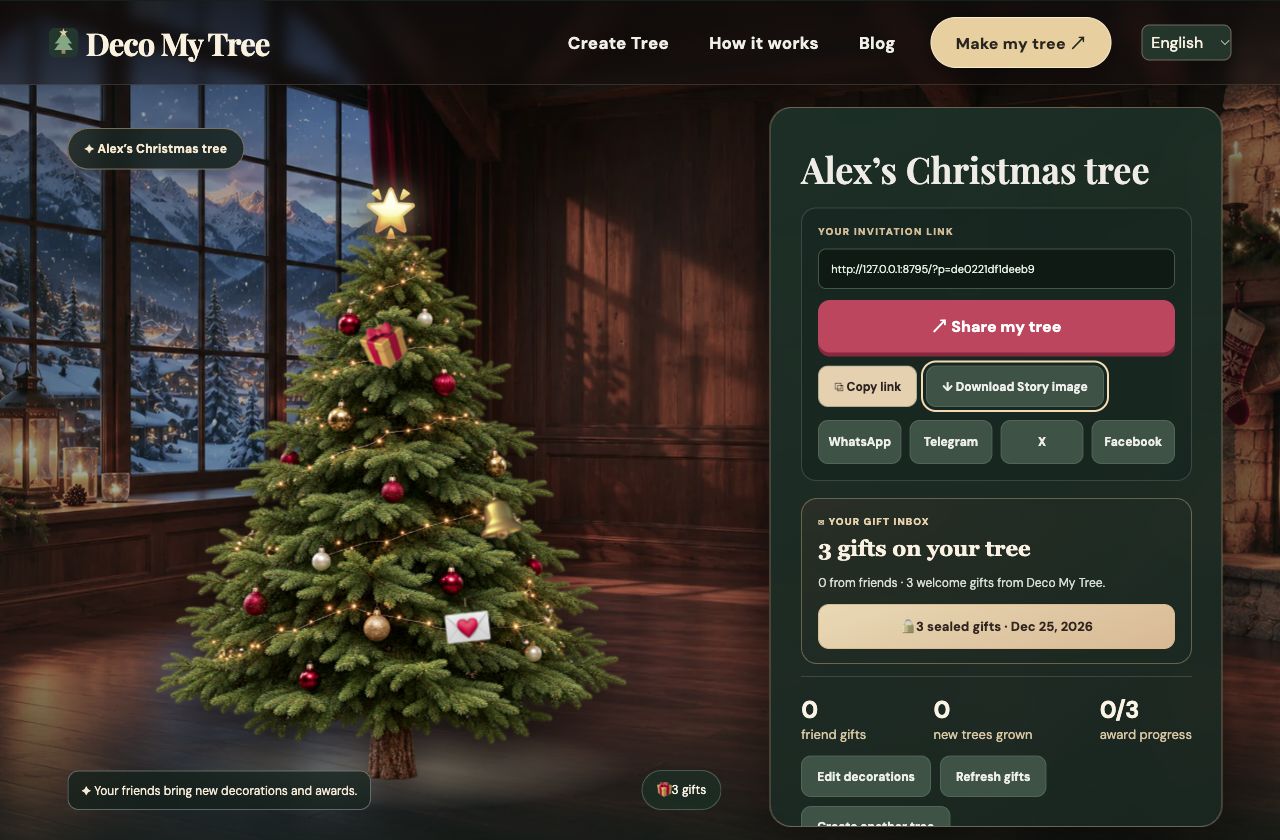
Desktop owner page showing the invitation link and Copy link control
Copy the invitation link from the sharing panel.

7. 好友可以送禮並寫下祝福

好友選填“寫下祝福”後點選趣味獎項送禮。祝福可以不寫,且只有發送者允許公開時,訪客才能在揭曉後看到。
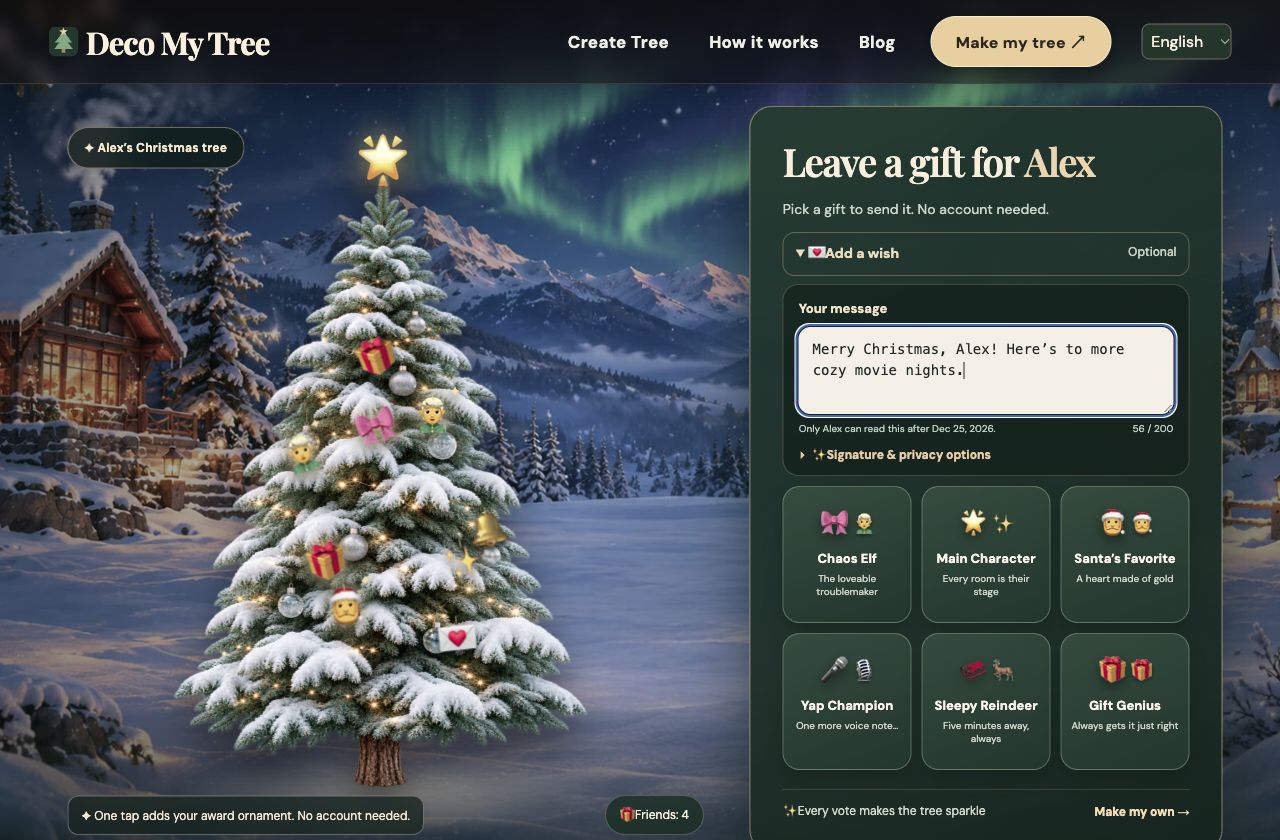
Desktop guest page with a Christmas wish typed above the friend award choices
Selecting an award sends the gift and any note the friend wrote.

8. 返回聖誕樹並打開禮物收件箱

在建立時使用的瀏覽器打開“我的聖誕樹”。換設備時使用私有管理連結。禮物未揭曉時,收件箱會顯示時間。到時間後點選“拆開我的禮物”查看禮物卡片。
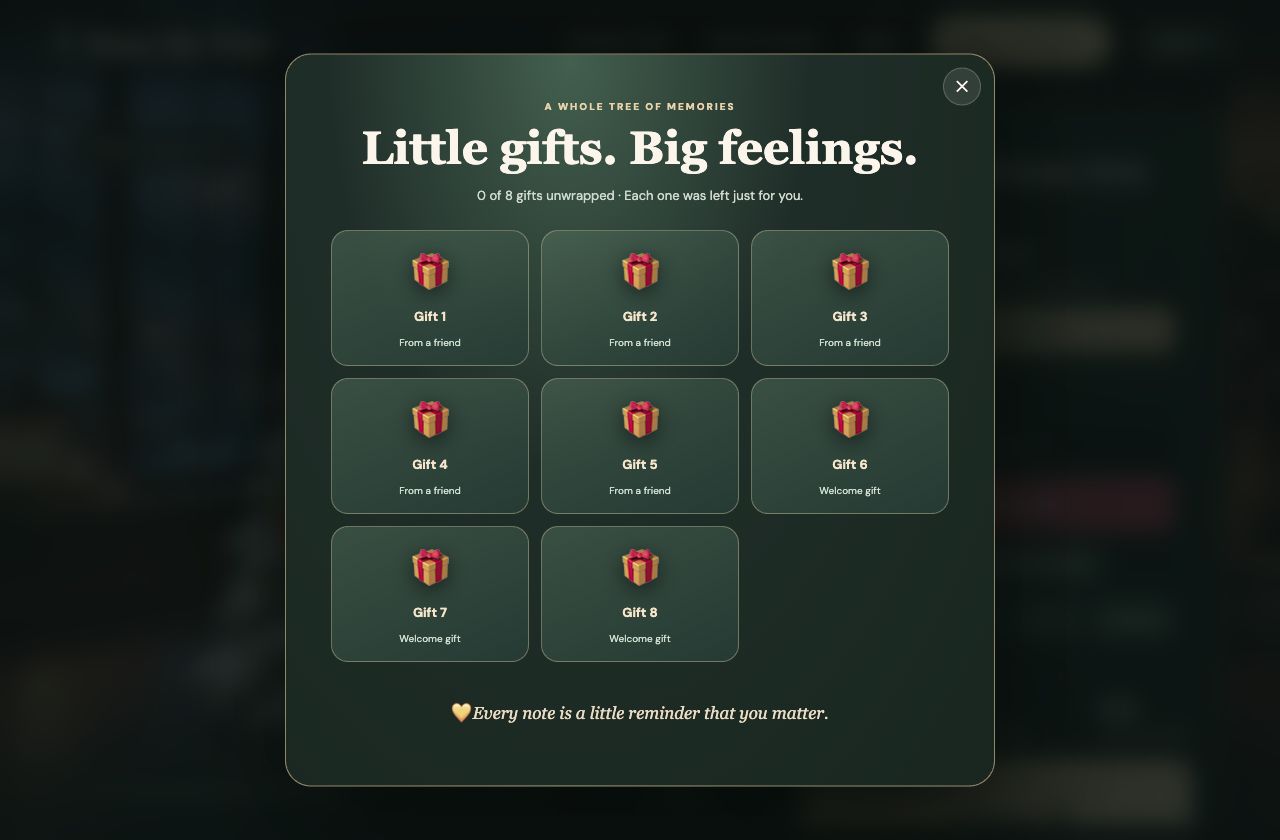
Desktop gift inbox on Alex’s Christmas tree showing numbered gift tiles to unwrap
Choose a gift from the inbox after the reveal.

9. 拆開禮物並閱讀祝福

點一張禮物卡片就能讀到祝福,署名的禮物會顯示發送者名字。點“更多禮物”返回收件箱繼續拆。

Desktop gift inbox revealing an example Christmas wish on Alex’s tree
The example gift shows what a note looks like after unwrapping.

免費建立聖誕樹 ↗

← 更多聖誕點子